Want to take your transitions beyond the default? In this beginner-friendly tutorial, you’ll learn how to change the look of the Cross Dissolve transition in Final Cut Pro for iPad to create unique, stylized effects. Final Cut Pro for iPad gives you controls that let you adjust the overall feel of your Cross Dissolve — perfect for mobile filmmakers, YouTube creators, and anyone editing on an iPad.

This video walks you step-by-step through how to modify the Cross Dissolve to achieve smoother blends, dramatic fades, or more creative transitions that elevate your storytelling.

Whether you’re new to video editing or looking to refine your mobile workflow, this guide will help you get more out of Final Cut Pro for iPad’s built-in tools. Optimize your edits and make your transitions stand out—all directly on your iPad.

The footage in this video was recorded with the iPhone 17 Pro.

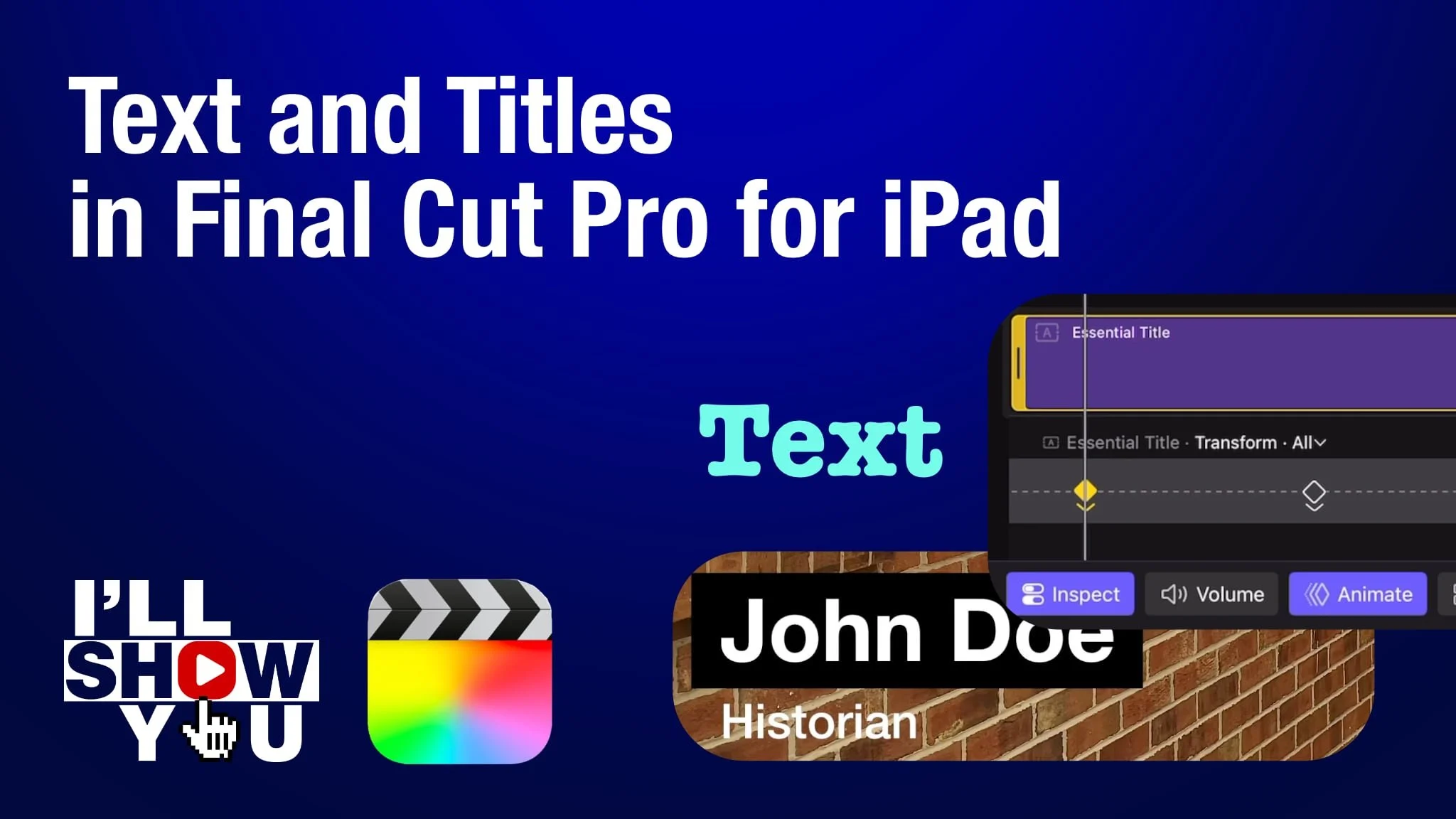
Master titles and text in Final Cut Pro for iPad with this focused playlist designed for beginners and mobile filmmakers. These tutorials walk you through everything from adding simple text to customizing fonts, colors, shadows, animation, lower thirds, keyframed movement, and more. Whether you’re creating YouTube videos, social content, or professional mobile projects, this playlist helps you take full control of titles and text on your iPad.

Learn how to design clean, modern titles, improve storytelling, and enhance your video edits using Apple’s powerful mobile editing software. Perfect for anyone looking to edit faster, smarter, and more creatively on Final Cut Pro for iPad.

Learn how to quickly speed up a video clip in Final Cut Pro for iPad using the built-in speed controls. This beginner-friendly tutorial walks you step-by-step through adjusting clip speed, previewing your changes, and using fast motion to enhance pacing, add energy, or create stylized effects for your projects.

Whether you’re editing on your iPad for YouTube, mobile filmmaking, social media, or travel videos, knowing how to control speed is essential for polishing your edits. Final Cut Pro for iPad makes it simple—and this video shows you exactly how to do it.

Perfect for beginners and mobile creators looking to edit faster, smarter, and more creatively with Apple’s professional video editing app.

Learn how to easily add a Lower Third title in Final Cut Pro for iPad using one of the app’s built-in basic titles. This beginner-friendly tutorial shows you how to place a lower third on screen and customize the text to identify speakers in interviews or any on-camera content.

If you’re editing on an iPad for YouTube, social media, documentaries, or mobile filmmaking, Lower Thirds are essential for clean, professional visuals—and Final Cut Pro for iPad makes it simple. This video is perfect for beginners looking to improve their titles, graphics, and overall editing workflow on Apple’s mobile editing platform.

Learn how to quickly add a Zoom transition in Final Cut Pro for iPad using the app’s built-in transition effect. This beginner-friendly tutorial walks you through where to find the Zoom transition, how to apply it, and how to customize its duration and intensity for smooth, dynamic edits.

Whether you’re creating YouTube videos, social media content, or mobile film projects, this simple effect can instantly make your edits feel more engaging and polished—all directly on your iPad. Perfect for mobile filmmakers, creators, and anyone looking to edit fast and efficiently with Apple’s powerful Final Cut Pro for iPad.

Learn how to edit Cinematic mode video recorded with your iPhone directly inside Final Cut Pro for iPad in this beginner-friendly tutorial. Cinematic mode captures beautiful depth-of-field effects, but to get the most out of it, you need to fine-tune focus points and adjust depth settings—and Final Cut Pro for iPad gives you powerful tools to do exactly that.

In this video, I’ll show you how to import your Cinematic mode clips, adjust focus points, change depth intensity, and use the tracking tools to refine your subject focus. You’ll also see how Cinematic editing on the iPad fits into a mobile filmmaking workflow, making it easier than ever to polish iPhone footage on the go.

If you shoot videos on your iPhone and edit on your iPad, this tutorial will help you unlock the full potential of Apple’s Cinematic mode using the speed and precision of Final Cut Pro for iPad.

The video clip in this tutorial was recorded with an iPhone 17 Pro in Cinematic mode.

Learn how to export a video without audio in Final Cut Pro for iPad in this quick and beginner-friendly tutorial. Whether you’re delivering silent b-roll, creating sound-free social media loops, or sending clips to collaborators who only need the visuals, knowing how to export video-only files is an essential skill for mobile filmmakers and editors.

In this step-by-step guide, you’ll see exactly which export setting to use in Final Cut Pro for iPad to disable audio and create a clean video-only file. Perfect for mobile video creators, iPad editors, content creators, and anyone working with Apple’s Final Cut Pro for iPad.

Learn how to edit multicam videos in Final Cut Pro for iPad with this step-by-step beginner-friendly tutorial. Whether you’re shooting interviews, events, podcasts, performances, or multi-camera YouTube content, this guide shows you how to harness the full power of multicam editing on the iPad.

In this video, you’ll learn how to set up a multicam clip, add new angles, and sync footage either automatically or manually. You’ll also explore the Angle Editor, where you can rename and refine each camera angle. Finally, you’ll see how easy it is to tap between angles while editing—giving you fast, intuitive control over your multicam workflow.

If you’re a mobile filmmaker, iPad video editor, or Final Cut Pro for iPad creator, this tutorial will help you edit multicam projects faster and more confidently on your iPad.

Learn how to perform a Roll Edit in Final Cut Pro for iPad—one of the most essential timeline editing techniques for creating smooth, professional transitions between clips. In this beginner-friendly tutorial, you’ll discover how to simultaneously adjust the out point of one clip and the in point of the next, allowing you to refine pacing and timing without changing your overall project length.

Whether you’re a mobile filmmaker, content creator, or iPad video editor, mastering roll edits will help you tighten your storytelling and produce cleaner, more polished cuts. This workflow is perfect for anyone editing directly on an iPad using Apple’s Final Cut Pro for iPad.

Improve your sound instantly in Final Cut Pro for iPad with this quick and easy tutorial! Learn how to remove unwanted background noise and enhance dialogue clarity using Noise Removal and Voice Isolation — two powerful audio enhancement tools built right into Final Cut Pro for iPad. These can be used separately or together.

Whether you’re editing a vlog, interview, or short film, this tutorial will show you how to clean up noisy audio, reduce hum and background sounds, and make your voice stand out — all directly on your iPad with Apple’s professional video editing app.

Perfect for mobile filmmakers, content creators, and video editors on the go, this workflow helps you achieve studio-quality sound without leaving your tablet. The video footage in this tutorial was recorded with the iPhone 17 Pro.

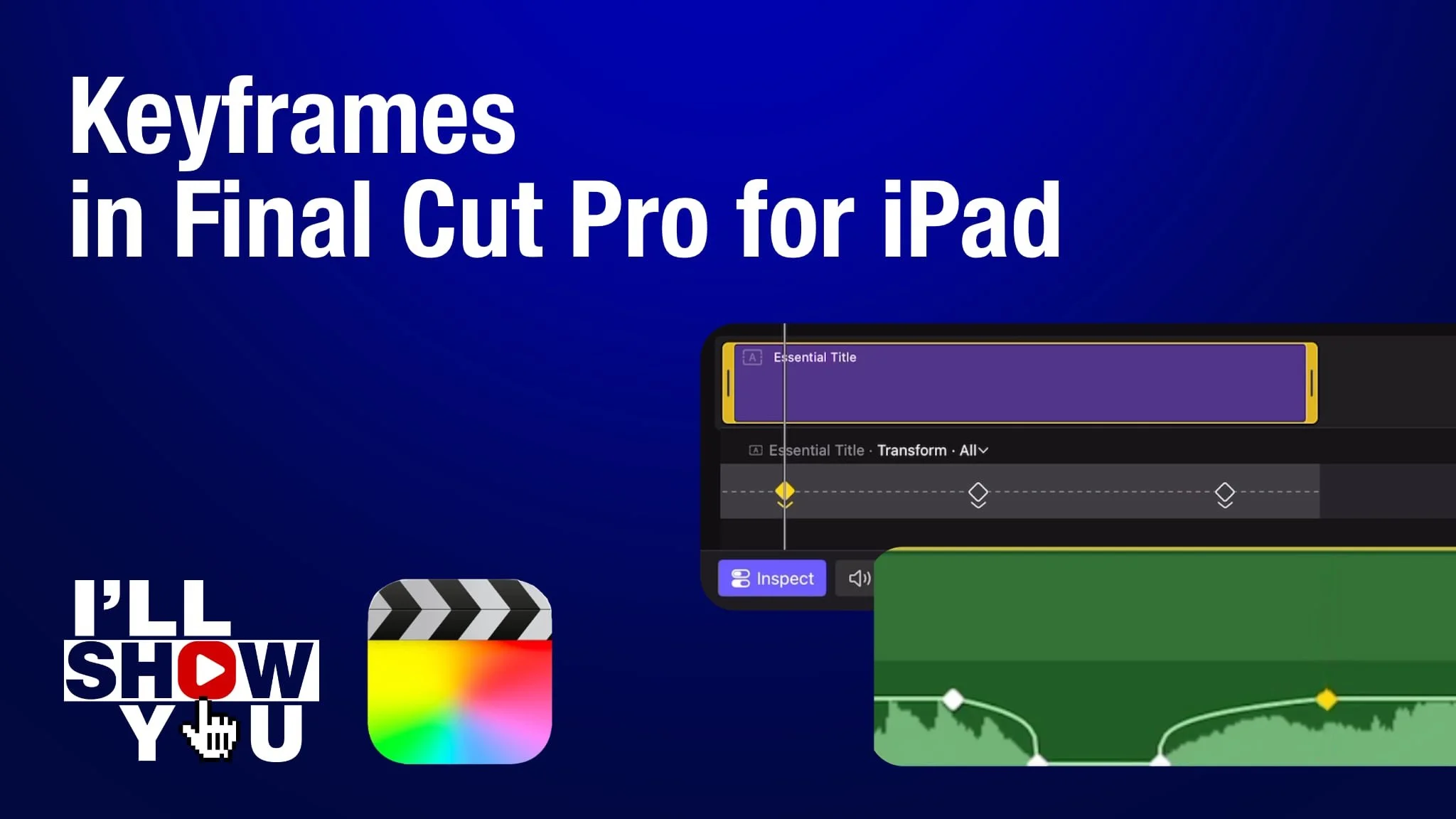
Take full control of your edits with this Final Cut Pro for iPad Keyframes Playlist — your guide to mastering animation and motion on iPad. Learn how to add, adjust, and manage keyframes for both video and audio clips to create professional, dynamic edits.

These tutorials cover everything from the basics of setting keyframes to advanced techniques like retiming animations and syncing audio adjustments. Perfect for mobile filmmakers, content creators, and video editors who want to edit faster and smarter on iPad.

Whether you’re adjusting motion, fine-tuning audio, or creating smooth text animations, this playlist will help you unlock the full power of keyframes in Final Cut Pro for iPad.

Learn how to animate text using keyframes in Final Cut Pro for iPad in this step-by-step tutorial. You’ll see how to add, delete, navigate, and re-time keyframes using the built-in keyframe editor to create smooth and professional text motion. Perfect for mobile video makers, filmmakers, and editors using iPad, this tutorial will help you bring your titles and graphics to life with dynamic animation. Whether you’re creating social videos, YouTube intros, or cinematic titles, mastering keyframes in Final Cut Pro for iPad is a must for any editor.

Discover how Apple’s powerful video editing tools make it easy to create motion graphics right from your iPad — no desktop required!

Software Versions:

Final Cut Pro for iPad 2.3

iPadOS 26.0.1

Learn how to record a voiceover directly in Final Cut Pro for iPad using the built-in voiceover recording feature. This beginner-friendly tutorial walks you through the fastest way to capture and insert narration or commentary right into your timeline — all from your iPad.

Whether you’re creating vlogs, tutorials, reels, or documentaries, this is a must-know technique for mobile filmmakers, content creators, and iPad video editors. Perfect for Final Cut Pro for iPad users who want to enhance their video projects with professional-sounding narration — no extra gear required!

Note: After the recording is complete, a clip of the recording is also placed in the browser.

Take full control of your audio with audio keyframes in Final Cut Pro for iPad! This beginner-friendly tutorial shows you how to add, delete, navigate between, move, and adjust audio levels using keyframes directly within your clip’s audio waveform.

Whether you’re working on a mobile filmmaking project, editing social media content, or refining your audio mix, this quick guide will help you master precise sound editing on your iPad. Learn how to smooth out volume transitions, duck music under dialogue, and create dynamic audio mixes—all while editing on the go with Apple’s powerful mobile video editing tool.

Optimize your sound like a pro—even when you’re editing on a tablet.

In this quick tutorial, learn how to fade to black at the end of your video using Final Cut Pro for iPad. This beginner-friendly video walks you through the process of adding a black solid background and applying a cross dissolve transition to create a clean, professional fade-out effect.

Fading to black is a classic way to end your video, add drama, or provide a smooth closing shot in mobile video projects. If you’re editing on an iPad with Final Cut Pro, this is an essential technique to add polish to your work.

Whether you’re a mobile filmmaker, YouTuber, or content creator, this technique will elevate your video’s ending and give it a professional touch—right from your iPad.

In this beginner-friendly tutorial, learn how to easily add a built-in music soundtrack to your project using Final Cut Pro for iPad. Whether you’re editing a vlog, short film, or social media content, this video shows how to add professional-quality music with just a few taps.

You’ll discover how Final Cut Pro’s built-in soundtracks automatically adjust their edit to match the duration of your video—making it fast and seamless to sync music to your clips without complex editing.

Take your mobile video editing to the next level using Apple’s professional tools on iPad!

Want to create square videos for social media right on your iPad? In this beginner-friendly tutorial, learn how to use Final Cut Pro for iPad to set a custom aspect ratio to create perfect square videos (1:1). Whether you’re posting on Instagram, Facebook, or other platforms, square videos help maximize visibility—and this video shows you exactly how to make them using Apple’s Final Cut Pro for iPad.

This is the perfect intro for mobile filmmakers, content creators, and video editors on the go looking to create clean, professional square videos using just their iPad and Final Cut Pro.