Learn how to make a time countdown in Final Cut Pro for iPad using a built-in generator. In this tutorial, you’ll see how to add a counting generator to your timeline and then modify it to function as a true time-based countdown, perfect for events, announcements, and special videos like a New Year’s Eve countdown.

This step-by-step walkthrough is designed for beginners and mobile video creators who want to create engaging countdown timer videos directly on iPad. You’ll learn how to customize the countdown’s duration, numbers, and look so it fits seamlessly into your project. No third-party apps or plugins are required—everything is done inside Final Cut Pro for iPad.

Whether you’re creating content for social media, live events, or holiday videos, this tutorial shows how easy it is to build a professional countdown using Apple’s powerful mobile video editing tools.

Learn how to do subframe audio editing in Final Cut Pro for iPad and make precise audio edits beyond standard frame boundaries. In this tutorial, you’ll see how to edit within a single frame of audio for cleaner cuts, tighter timing, and more professional-sounding results—especially important for dialogue, music, and sound effects.

This video explains how subframe editing works in Final Cut Pro for iPad and how to recognize it in the timecode, where a period and additional numbers appear after the frame count.

Perfect for mobile video makers and filmmakers editing on iPad, this tutorial is ideal for beginners and intermediate users who want more control over their audio while using Apple’s professional video editing tools.

Learn how to tint a video clip in Final Cut Pro for iPad using a built-in video effect. In this beginner-friendly tutorial, you’ll see how to quickly apply a color tint to your footage to change its mood, style, or visual tone. Tinting is a simple but powerful way to enhance storytelling, create a stylized look, or match a specific color theme in your project.

This video walks through how to find the tint effect, apply it to a clip in the timeline, and adjust the color to get the look you want—all directly on iPad. Whether you’re editing YouTube videos, social media content, or mobile filmmaking projects, this technique helps you get creative results fast without complex color grading tools.

Perfect for creators new to Final Cut Pro for iPad, this tutorial is part of a mobile video editing workflow focused on speed, simplicity, and professional results using Apple’s editing tools.

Learn how to import media in Final Cut Pro for iPad quickly and efficiently in this beginner-friendly tutorial. This video walks you through how to import video, audio, and photos both when creating a new project and while editing an existing project.

You’ll see exactly how to import media from Photos and Files at each stage of the editing process, making it easy to bring in footage from your iPhone, iPad, external drives, cloud storage, or other sources. Understanding these import options helps you stay organized and speeds up your workflow when editing on iPad.

This tutorial is perfect for creators focused on mobile video making, mobile filmmaking, and video editing on iPad. Whether you’re just getting started with Final Cut Pro for iPad or want a clearer understanding of media importing, this guide will help you confidently get your footage into your project and start editing faster.

Learn how to use keywords in Final Cut Pro for iPad to stay organized and edit more efficiently. In this step-by-step tutorial, you’ll see how to add keywords to a single clip or multiple clips at once, apply multiple keywords to the same clip, and even assign keywords to a specific range within a clip.

This video also shows how to filter the browser by keywords, making it easy to quickly find the exact clips you need while editing. Using keywords is one of the most powerful ways to improve project organization in Final Cut Pro for iPad, especially when working with large projects or complex timelines.

Perfect for beginners and intermediate users, this tutorial is ideal for creators focused on mobile video making, mobile filmmaking, and video editing on iPad. Whether you’re editing YouTube videos, social media content, or professional projects, learning how to use keywords will help you work faster and smarter in Apple’s Final Cut Pro for iPad.

Stay organized and edit faster with this tutorial playlist focused on project organization in Final Cut Pro for iPad. These videos walk through essential tools and workflows that help you manage media efficiently when editing on iPad. You’ll learn how to use keywords to tag clips, rate clips with favorites and rejects, filter clips in the browser, and rename clips for clarity.

The playlist also covers how to hide and manage hidden clips, making it easier to focus on the media you actually need while editing. Strong organization is critical for smooth mobile video making and mobile filmmaking, especially when working with larger projects or editing on the go.

Designed for beginners and intermediate users, this playlist helps creators, filmmakers, and editors get more out of Final Cut Pro for iPad, Apple’s powerful mobile video editing app. Mastering these organization features will speed up your workflow, improve project management, and make editing on iPads more efficient and enjoyable.

Explore the Final Cut Pro for iPad interface with this beginner-friendly tutorial playlist designed to help you understand where everything lives and how it all works together. These videos break down the core features of the app’s interface, including the timeline, browser, inspector, viewer, tools, and editing controls—so you can edit faster and with more confidence on iPad.

Whether you’re new to Final Cut Pro for iPad or transitioning from desktop editing, this playlist helps you build a solid foundation for mobile video making and mobile filmmaking. Understanding the interface is the key to efficient workflows, better organization, and smoother editing on Apple’s powerful iPad platform.

Perfect for creators, filmmakers, educators, and anyone looking to get the most out of video editing on iPad, this growing playlist will help you master the Final Cut Pro for iPad workspace and unlock its full potential.

Learn how to rate clips in Final Cut Pro for iPad to stay organized and edit faster. In this tutorial, you’ll see how to mark clips as Favorites or Rejects and how to clear ratings.

This video covers rating clips in multiple ways: rating an entire clip, rating a specific range within a clip, and rating multiple clips at the same time. These tools are essential for sorting footage, finding your best takes quickly, and keeping large projects organized—especially when editing on the go.

Whether you’re new to Final Cut Pro for iPad or looking to improve your mobile video making workflow, this tutorial will help you edit more efficiently using Apple’s powerful video editing tools on iPad.

Learn how to change the aspect ratio of a timeline in Final Cut Pro for iPad, including how to convert a landscape (horizontal) video into a portrait (vertical) format. This beginner-friendly tutorial walks you through the exact steps to update your timeline settings so you can easily create vertical videos for platforms like TikTok, Instagram Reels, and YouTube Shorts.

You’ll see how to switch a timeline from horizontal to vertical, and adjust your edit to fit the new format. Whether you’re editing for social media or experimenting with mobile-first video layouts, this workflow helps you edit faster and more confidently on your iPad.

Learn how to set up an external project in Final Cut Pro for iPad so you can edit directly from an external drive—saving storage space on your iPad and improving your mobile editing workflow. This beginner-friendly tutorial walks you through creating a new project, and choosing an external storage location, such as an external SSD.

If you’re editing on an iPad with limited space or want a more flexible, professional workflow, this guide will help you set up your external project on a drive the right way. Perfect for creators using Final Cut Pro for iPad for mobile video making, YouTube content creation, or filmmaking on the go.

In this beginner-friendly tutorial, you’ll learn how to manage hidden clips in Final Cut Pro for iPad to keep your projects organized and clutter-free. Final Cut Pro for iPad includes a hidden-clip feature that lets you temporarily remove clips from view without deleting them—perfect for improving your workflow, comparing takes, or focusing on the media you actually want to use.

This video walks you through:

- How to hide a clip in the browser

- How to unhide a clip

- How to use the browser filter to show or hide hidden clips

Whether you’re new to editing or leveling up your mobile filmmaking workflow, this tutorial will help you work faster and smarter inside Final Cut Pro for iPad. Great for editors creating content on the go using an iPad, Apple Pencil, or mobile production setup.

Want to create a telescope or monocular-style look in your video? In this beginner-friendly tutorial, you’ll learn how to make a circle mask in Final Cut Pro for iPad to add a clean, round viewing window to any video clip. This technique is perfect for storytelling, creative effects, travel videos, and mobile filmmaking projects where you want to simulate a scoped or focused point of view.

This step-by-step guide walks you through how to add and adjust a shape mask, refine its shape, and control the feather—all directly on your iPad using Final Cut Pro for iPad’s built-in masking tools. Whether you’re a new creator or an experienced mobile editor, this fast and easy effect will help you elevate your visuals.

If you’re editing on an iPad and want to enhance your skills in masking, effects, and mobile video creation, this video is the perfect place to start.

Want to take your transitions beyond the default? In this beginner-friendly tutorial, you’ll learn how to change the look of the Cross Dissolve transition in Final Cut Pro for iPad to create unique, stylized effects. Final Cut Pro for iPad gives you controls that let you adjust the overall feel of your Cross Dissolve — perfect for mobile filmmakers, YouTube creators, and anyone editing on an iPad.

This video walks you step-by-step through how to modify the Cross Dissolve to achieve smoother blends, dramatic fades, or more creative transitions that elevate your storytelling.

Whether you’re new to video editing or looking to refine your mobile workflow, this guide will help you get more out of Final Cut Pro for iPad’s built-in tools. Optimize your edits and make your transitions stand out—all directly on your iPad.

The footage in this video was recorded with the iPhone 17 Pro.

Want to make your audio sound like someone just inhaled helium? In this quick and fun tutorial, you’ll learn how to use the Helium Voice effect in Final Cut Pro for iPad to instantly change the pitch of a voice clip. This step-by-step walkthrough shows you how to add the effect and how to adjust its intensity for the perfect high-pitched, cartoon-style sound.

Whether you’re making comedy videos, TikToks, YouTube shorts, or mobile filmmaking projects, this effect is an easy way to add personality and humor to your edits. Final Cut Pro for iPad makes audio manipulation simple—and this tutorial helps beginners get results fast.

Perfect for creators working on an iPad, mobile video editors, and anyone exploring Apple’s powerful editing tools.

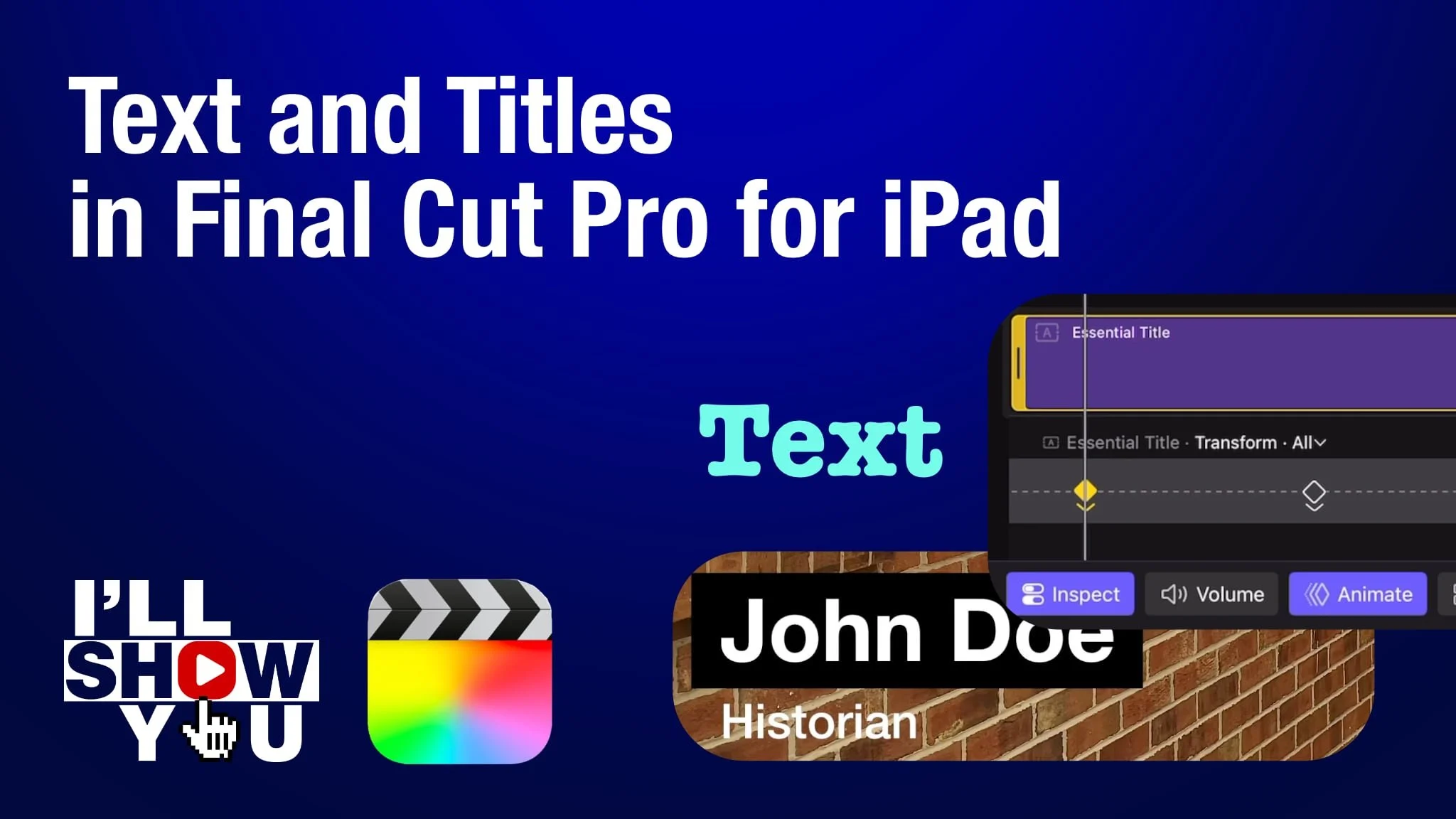
Master titles and text in Final Cut Pro for iPad with this focused playlist designed for beginners and mobile filmmakers. These tutorials walk you through everything from adding simple text to customizing fonts, colors, shadows, animation, lower thirds, keyframed movement, and more. Whether you’re creating YouTube videos, social content, or professional mobile projects, this playlist helps you take full control of titles and text on your iPad.

Learn how to design clean, modern titles, improve storytelling, and enhance your video edits using Apple’s powerful mobile editing software. Perfect for anyone looking to edit faster, smarter, and more creatively on Final Cut Pro for iPad.

Learn how to quickly speed up a video clip in Final Cut Pro for iPad using the built-in speed controls. This beginner-friendly tutorial walks you step-by-step through adjusting clip speed, previewing your changes, and using fast motion to enhance pacing, add energy, or create stylized effects for your projects.

Whether you’re editing on your iPad for YouTube, mobile filmmaking, social media, or travel videos, knowing how to control speed is essential for polishing your edits. Final Cut Pro for iPad makes it simple—and this video shows you exactly how to do it.

Perfect for beginners and mobile creators looking to edit faster, smarter, and more creatively with Apple’s professional video editing app.

Learn how to easily add a Lower Third title in Final Cut Pro for iPad using one of the app’s built-in basic titles. This beginner-friendly tutorial shows you how to place a lower third on screen and customize the text to identify speakers in interviews or any on-camera content.

If you’re editing on an iPad for YouTube, social media, documentaries, or mobile filmmaking, Lower Thirds are essential for clean, professional visuals—and Final Cut Pro for iPad makes it simple. This video is perfect for beginners looking to improve their titles, graphics, and overall editing workflow on Apple’s mobile editing platform.

Learn how to quickly add a Zoom transition in Final Cut Pro for iPad using the app’s built-in transition effect. This beginner-friendly tutorial walks you through where to find the Zoom transition, how to apply it, and how to customize its duration and intensity for smooth, dynamic edits.

Whether you’re creating YouTube videos, social media content, or mobile film projects, this simple effect can instantly make your edits feel more engaging and polished—all directly on your iPad. Perfect for mobile filmmakers, creators, and anyone looking to edit fast and efficiently with Apple’s powerful Final Cut Pro for iPad.

This playlist is your complete guide to color correction and color grading in Final Cut Pro for iPad, designed for beginners and mobile filmmakers who want to take their visuals to the next level. Whether you’re fixing exposure, balancing white levels, enhancing color, or crafting a cinematic look, these tutorials walk you through every essential tool available on the iPad version of Final Cut Pro.

Explore step-by-step lessons on using color controls, video scopes, LUTs, color masks, keyframes, and Apple’s intelligent Enhance Light & Color tools. Each video is optimized for mobile editors working on iPad, helping you grade faster, smarter, and more creatively—no desktop required.

Perfect for mobile video creators, YouTubers, iPad editors, and anyone looking to build a professional color workflow directly on the iPad.

Learn how to edit Cinematic mode video recorded with your iPhone directly inside Final Cut Pro for iPad in this beginner-friendly tutorial. Cinematic mode captures beautiful depth-of-field effects, but to get the most out of it, you need to fine-tune focus points and adjust depth settings—and Final Cut Pro for iPad gives you powerful tools to do exactly that.

In this video, I’ll show you how to import your Cinematic mode clips, adjust focus points, change depth intensity, and use the tracking tools to refine your subject focus. You’ll also see how Cinematic editing on the iPad fits into a mobile filmmaking workflow, making it easier than ever to polish iPhone footage on the go.

If you shoot videos on your iPhone and edit on your iPad, this tutorial will help you unlock the full potential of Apple’s Cinematic mode using the speed and precision of Final Cut Pro for iPad.

The video clip in this tutorial was recorded with an iPhone 17 Pro in Cinematic mode.