Final Cut Pro X is a great editing tool.  I couldn't go back to Final Cut Pro 7 or go to Media Composer or Premiere for my video work.  I work so much faster in FInal Cut Pro X and I enjoy the user interface.(it just feels better to work in than Final Cut Pro 7, Media Composer or Premiere to me). 

But... what would I want in a future revision that I don't have yet?  I've compiled a list of things that I think would improve the Final Cut Pro X experience.

Here we go:

Motion.png

A New Relationship with Motion

This is the biggest and most important issue that I think needs to get addressed in the next major version of Final Cut Pro X.  I am not sure if the solution is round-tripping like Final Cut Pro 7 and earlier, but I would like to see a better workflow for doing custom animation work for video projects.

The new paradigm seems to be, more or less, that Motion is either a template/effect/transition building program for Final Cut Pro X or it's a program to create finished Quicktime movies.  This works great for users creating their own lower third titles, their own opening/closing video series animations, custom color effects and custom transitions, all of which need to be used frequently across multiple projects.

For someone doing custom animation work in Motion, the ability to get that work into Final Cut Pro X and to then make changes is not trivial.  Let me give you an example.  Let’s say I have a 3 minute video that has a few interview clips and I would like to create animations on top of this that are synced to what is being said.  How can I do this efficiently in the current paradigm?  One approach is that you use the Final Cut Pro Generators as one-time-use templates.

To do this, I need to first decide on the segment that I want to add an animation to.  Then, I could export just that range as a low-res Quicktime movie.  I then launch Motion, create a new Motion Generator with the same settings as the movie, import the movie as a reference, and then begin animating.  Once the animation is complete, I publish this project as a Generator, switch to Final Cut Pro X, open my Generators section, find the Generator I just created, place it in the timeline at the exact frame that the reference clip begins and voila.

To make changes to this animation (assuming that I didn’t get it perfectly right on the first try), I open the “template”, make the changes, save the changes, go back to the Generators section in Final Cut Pro X, place the “template” on top of the previous one, and then delete the old one.  Repeat this process until the animation is finalized.

Does that work?  Yes.  Simple?  No.

Another approach is to export Quicktime Movies from Motion as you work on the animation and import these movies into the Final Cut Pro X timeline.  If you need to make changes, you go back to the Motion projects, make changes, export new Quicktime movies, import the new movies into the Final Cut Pro X Event, replace the old movies with the new ones and delete the old movies from the Event.

Does that work?  Yes.  Simple?  No.

Neither approach is a great solution.  The current workflows are prone to mis-steps, errors and/or heavy-lifting.  There’s got to be a better way.

With this, there's a choice of centralized vs. non-centralized functionality: do you put everything in Final Cut Pro X or do you have a lot of other programs, like the Final Cut Studio model, to handle a deeper level of creation?  Perhaps the solution is to allow Motion files and its associated media to be imported into Final Cut Events, so that they become a separate contained instance that can easily be opened and backed up?  Perhaps the solution is to allow more hooks into Motion that give the ability to make simple timing changes within an animation “template”?  Perhaps it’s an ideal situation to bring most of the capability and functionality of Motion into Final Cut Pro X so that editing and animation is one tool?  Being able to farm out animation work across multiple animators is a great argument for a decentralized approach.  Ease of archiving and changes is a great argument for a centralized approach.  It is a tough dilemma.

So, boiling this all down, what are the goals of a needed change in the Motion-to-Final Cut Pro X relationship?  Better ease of use, better ease of changes and better archiving.


Better Archiving and Restoring 

I list this next because part of the challenge (as it's always been) is that to archive a project with Motion templates, one has to backup the Final Cut Project, the associated Final Cut Events and the associated Motion templates/effects/transitions.  It's not terribly complicated to handle if you’re comfortable managing many elements and folders in the Finder.  If you’re not, it could be a bag of hurt if you want to restore a project a year later and found out that you deleted some Titles or Generators.

I would love it if I could click an "Archive" button and then the application gathers up all of the materials that went into that project and bundles them into one Project Archive (similar to the Camera Archive function for video capture).  That file could then be stored and moved for later use, either on the same system or another system.


Hold frames for Ken Burns controls

The Ken Burns controls for photo animation work great.  At first, its behavior didn’t work as I expected (not sure if it was buggy or if I had some odd photo files).  Now, it works great for me.  It's a great example of a process made better by not worrying about keyframes.  One addition that I would like is the ability to have paused frames at the beginning and end of an animation.  Often times I would like to end on a particular framing of a shot before cutting away.  Perhaps the simplest way to handle this is to have settings for holding the beginning and ending frames similar to how it can be done in Motion.


Guides/Grids

Some of this goes back to the choice of "How much of Motion is in Final Cut Pro X?", but I think it would be helpful to have guides in FCPX that would have snapping and alignment information.  A grid might be helpful as well, but that depends on how much animation work is done in FCPX versus Motion.


Compressor.png

Put all of Compressor into Final Cut Pro X

Why list this?  I used to have Compressor open all of the time... probably more than Final Cut Pro because it handled so many encodings for me.  It would often work 24 hours a day for days on end.  After 10.0.6, my Compressor usage has gone away nearly completely.  Why?  Because most of my file encoding (both single file as well as batch/bundle) is now handled by the Share feature in Final Cut Pro X.  The “Add Destinations” and Bundles features added in Final Cut Pro X were huge improvements for Sharing.

I think there are two main things that are needed to bring Compressor completely over to Final Cut Pro X: custom preset creation and the ability to batch up multiple files from the Finder.  The clustering in Compressor is another matter.  I’m sure that’s a big feature for a lot of users and that might be enough to justify keeping Compressor separate.  It’s not that I want to see Compressor go away.  It’s a program that has served me well for years, but if I can simplify my workflow, I’m all for it.


Batch Sharing of Projects

Being able to export several projects at once is a great feature.  In Final Cut Pro 7 and earlier, Batch Export was a function I used a fair amount.  I didn’t use it daily or even weekly, but those times that I needed it, it was a huge help.  In Final Cut Pro X’s Project Library, you can only select one project at a time to share.  It’d be great if after working on 15 video interview clips in separate projects to highlight all 15 and share them rather than having to select and export each one.


Better information on what's Sharing in the Background Rendering screen

Being able to batch up several projects and let them all queue up for rendering is great in Final Cut Pro X.  What would be even better is the ability to see the project names of what’s been queued up rather than (or in addition to) the preset name.  A history (like Compressor) might be nice to see if something failed, but not necessary.

Background Rendering.jpg


Manual White Balance

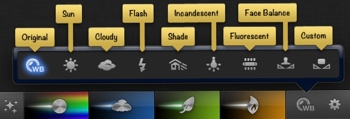
Using the old Eye Dropper tool got you 90%-95% of the way towards white balancing your video.(if not 100%). Now, one has to know more about how color works, so that you can remove blue from the shot.  Perhaps the solution is something like in the iOS version of iPhoto.  It's an intuitive way to identify where your video was shot and then have the software adjust appropriately.  There's even an option for more manual control.
iPhoto for iOS.jpg


Charts and graphs

I’ve needed to create an animated chart or graph in Motion many times and there’s not an easy way to do it.  Often times, I go to iWork and use Numbers to create a chart or graph.  I’ll input the data, create the chart and either export a video or a still to then bring into Final Cut Pro X.  It’s a workaround and it’s not perfect.  For some reason, alpha layers don’t work as advertised in the Numbers export and I have to do a Color Key or a Luma Key if I want to overlay the graph.

A good solution?  How about a drag-and-drop Generator that allows one to create an animated chart/graph by inputting data.  Add in some controls for some build options and you've got a good graph/chart solution for a lot of people.


Motion Blur on/off for animation within Final Cut Pro X

This is a small one, but some elements that are in Final Cut Pro X don’t have motion blur turned on when they animate.  It’d be nice if it could be.  This might be done as a per element contextual click. (like Optical Flow)

Dictation.png

Automated Dictation for Search, Transcription and Subtitling

I’ve found voice dictation in Mac OS X and iOS to be excellent.  I try to use it when I can simply to save time.  How can this be applied to Final Cut Pro X?  It could be used to create text for search, transcription and subtitling for use within a video, Project or Event.

Would it be 100% correct?  No, no tool for this is.  Proper nouns can be tough to translate.  So, there needs to be an easy way to correct this... Just as easy as it is to change text for a title.

Once the text is associated to timecode and connected to the video correctly, there are two things that could be done that would be helpful: transcription and subtitling.  Being able to export a transcription of a video/project could be useful for many people...certainly for documentary interview work as well as some educational use too.

Subtitle tracks from this text track would be a great addition to create more closed captioning for videos.  Who knows... Maybe even additional language tracks could be added in as well.


In closing
 

Final Cut Pro X has quickly passed FInal Cut Pro 7 (and earlier versions) as my favorite and most efficient editing application.  I edit faster, which ultimately leads to better videos.  I have also found that I enjoy the editing process more.  That's not a very scientific observation, but I've found it to be true.  Hopefully, the suggestions presented above will help shape Final Cut Pro X into an even better experience for many more people.


UPDATE: Click here for a few more thoughts... 


For more from Bascomb Productions, visit the YouTube channel or subscribe via Twitter.


Photos can be framed easily in Final Cut Pro X with the Frame effect.  Watch this video to see how you can easily give your photos an added touch of design.

Subscribe to the Bascomb Productions channel to see new episodes of "I'll Show You".

Got requests?  Send in your suggestions via a YouTube message or via the website's contact page.

Copyright 2013 - Bascomb Productions

Posted
AuthorBascomb Productions
Do you need to add an arrow in Final Cut Pro X?  Watch this video to see how you can quickly create an arrow that will highlight or point to an important area in your video.


The version of Final Cut Pro X show in this video is version 10.0.7.  Creating the arrow will work in all versions of Final Cut Pro X.  The ability to use transitions on a connected clip works in version 10.0.1 and later.

Subscribe to Bascomb Productions to see new episodes of "I'll Show You".


Got requests?  Send in your suggestions via a YouTube message or via the website's contact page.

Copyright 2013 - Bascomb Productions


Posted
AuthorBascomb Productions
Need to export only a portion of your project from Final Cut Pro X?  Watch this video to see how you can use the Range Selection tool in Final Cut Pro X (version 10.0.6 or higher) to output a segment in a Timeline.


When exporting a range, all connected clips within the range will export too.  With snapping turned on, the Range Selection tool will snap to keyframes as well as edit points within the range.

You can also select a range by selecting a connected object with the Range Selection Tool.


Subscribe to Bascomb Productions to see new episodes of "I'll Show You".


Got requests?  Send in your suggestions via a YouTube message or via the website's contact page.

Copyright 2012 - Bascomb Productions

Posted
AuthorBascomb Productions
Popcorn is a classic snack and microwave popcorn is a fast and easy way to have it anytime.  But did you know you can save money AND calories by making your own microwave popcorn at home?  A simple brown paper bag is the key to healthier popcorn you can enjoy at home or at the office in just minutes!

With a few minutes extra preparation, you can create your own custom popcorn flavors!  Butter and salt are classic, but why stop there?  You could try Garlic-Parmesan, Cinnamon-Sugar, Sea Salt & Black Pepper…play around with all the different spices in your spice rack and see what flavor combos you can come up with!


Subscribe to Bascomb Productions to see new episodes of "I'll Show You".


Got requests?  Send in your suggestions via a YouTube message or via the website's contact page.

Copyright 2012 - Bascomb Productions


Posted
AuthorBascomb Productions
Popcorn is a classic snack and microwave popcorn is a fast and easy way to have it anytime.  But did you know you can save money AND calories by making your own microwave popcorn at home?  A simple brown paper bag is the key to healthier popcorn you can enjoy at home or at the office in just minutes!


Subscribe to Bascomb Productions to see new episodes of "I'll Show You".

Got requests?  Send in your suggestions via a YouTube message or via the website's contact page.

Copyright 2012 - Bascomb Productions


Posted
AuthorBascomb Productions

Want to liven up the look of your house?  Watch this video to see how you can create your own custom light switch plates that will add unique designs to your home.


Tips on choosing a design: For interesting designs, try looking at magazines, calenders, postcards, or comic books. Your local used book store is a great resource!

Tips on positioning your plate- Try holding your design up to a light with the plate positioned behind it. The shadow of the plate against the design will help you see what your finished plate will might look like and more easily position your design!

Subscribe to Bascomb Productions to see new episodes of "I'll Show You".

Got requests?  Send in your suggestions via a YouTube message or via the website's contact page.

Copyright 2012 - Bascomb Productions


Posted
AuthorBascomb Productions
Need to make a countdown?  Check out this video to see how you can quickly create a countdown animation in Final Cut Pro X.


The software version of Final Cut Pro X used in this video is 10.0.5, but this works in all previous versions.  As you see in the video, the countdown format is not limited to one style.  There are many different styles to choose from: number, currency, percent, scientific, spell out, binary, and hexadecimal.

Subscribe to Bascomb Productions to see new episodes of "I'll Show You".

Got requests?  Send in your suggestions via a YouTube message or via the website's contact page.

Copyright 2012 - Bascomb Productions

 
Posted
AuthorBascomb Productions
Fades to and from black are simple in Final Cut Pro X.  Watch this video to see how you can quickly apply fades to a video clip using Final Cut Pro X's Video Animation Editor.


The software version of Final Cut Pro X used in this video is 10.0.5, but this works in all previous versions.  In version 10.0.6 and higher, the drop-down menu in the upper left corner of the video object is no longer present.  To expand the video animation editor, you will need to use the menu bar or the keyboard shortcut Ctrl-V.

Subscribe to Bascomb Productions to see new episodes of "I'll Show You".

Got requests?  Send in your suggestions via a YouTube message or via the website's contact page.

Copyright 2012 - Bascomb Productions


Posted
AuthorBascomb Productions

Freeze frames are easy in Final Cut Pro X.  Watch this video to see how you can quickly and easily create a freeze frame in one of your video clips.

The software version of Final Cut Pro X used in this video is 10.0.5, but this works in all previous versions.

Subscribe to Bascomb Productions to see new episodes of "I'll Show You".

Got requests?  Send in your suggestions via a YouTube message or via the website's contact page.

Copyright 2012 - Bascomb Productions


Posted
AuthorBascomb Productions
Need more hard drive space?  Watch this video to see how you can free up disk space on your computer by clearing out Final Cut Pro X's render files.


The best time to clear out your render files is once a project is done... right before archiving the project and event off to a disk drive for long term storage.  For large projects, this will clear up a significant amount of disk space since rendering is done by default in ProRes 422.  Don't worry about deleting these files in case you want to return to the project in the future.  You can always render again.

If you need some extra space while still working on a project, check the "Unused Render Files Only" button.  This will clear out all of the Render Files with the project except for the ones that are currently being used by the project's timeline. 

The software version of Final Cut Pro X used in this video is 10.0.5, but this works in all previous versions.

Subscribe to Bascomb Productions to see new episodes of "I'll Show You".

Got requests?  Send in your suggestions via a YouTube message or via the website's contact page.

Copyright 2012 - Bascomb Productions
Posted
AuthorBascomb Productions

Want to easily make a watermark in Final Cut Pro X?  Watch this video to see how simple adding a watermark to your video can be. 

The software version of Final Cut Pro X used in this video is 10.0.4.

Subscribe to Bascomb Productions to see new episodes of "I'll Show You".
 
Got requests?  Send in your suggestions via a YouTube message or via the website's contact page.
Posted
AuthorBascomb Productions
How can you easily create an Instant Replay in Final Cut Pro X?  Watch this video to see how quickly you can make a slow motion replay with Final Cut Pro X's Retiming features.


The software version of Final Cut Pro X used in this video is 10.0.5, though this process will work with all previous versions.

Subscribe to Bascomb Productions to see new episodes of "I'll Show You".


Got requests?  Send in your suggestions via a YouTube message or via the contact web page.

Posted
AuthorBascomb Productions
How do you make a diaper cake that you can give to an expecting couple?  Watch this video to see how you can make a fun and practical gift that will be a hit at any baby shower and is guaranteed to put smiles on the faces of future parents.

 
Some tips for your diaper cake:

 
Theme - It’s fun to give your diaper cake a theme.  If the parents have a registry, take a look at it to determine if they have a theme (or at least a color preference) for their nursery.  If they don’t have any preferences, you can still pick a theme (animals, flowers, cars, princesses, etc.) for your cake.

 
Supplies - The supplies you choose can vary based on your budget.  You can do a basic cake (diapers and ribbons only) for around $30.  With a larger budget, you can add in other little gifts.
 
Construction Tips - Take one diaper roll and put a rubber band around it.  Then put another diaper roll inside the same rubber band, one at a time, until the first diaper is surrounded by a circle of diapers.  Be sure diapers on outside circle are all facing the same direction so that they look uniform.  (This is particularly important if you’re using diapers with any logo or design on them.)

 
Decorating Tips - Get creative and have fun with ideas for decorating your cake!  In addition to the ideas shown in this video, you can: 
  • Wedge small toys, bibs or other small items into cracks between diapers
  • Top the cake with a big bow, with ribbons that hang down on all sides.
  • Substitute ribbon with lacy baby headbands
  • Set up toy blocks spelling out the baby’s name around the edges of one of the diaper layers
  • If bringing to a baby shower, have the guests write pieces of advice for the new parents and tuck them in between the diapers.

     
Stacking Tips - Stabilize dowel in center of bottom (largest) layer.   Stack other layers on top, using dowel as center mark.  Place cake topper on top layer.  If you’re using a stuffed animal, tie a ribbon around its neck to secure it to the dowel.  If the dowel is taller than the cake topper, trim it down so that it doesn’t show.  For transporting the cake, separate the layers and restack them at your destination.  It keeps the cake from toppling or getting disturbed in transit.

 
Other Tips - I like to add a card listing all the ‘ingredients’ used in making the cake.  It adds to the presentation and helps the parents sort the items once they dismantle the cake.

 
If you have questions or would like to order a custom diaper cake, you can email cspencercakes@gmail.com for more information.

 
Subscribe to Bascomb Productions to see new episodes of "I'll Show You".

 
Got requests?  Send in your suggestions via a YouTube message or via the website's contact page.
Posted
AuthorBascomb Productions
Want to make a Preview screen like you see before major Hollywood movies?  Watch this video to see how you can make your own screen to put in front of your upcoming movie trailers.

The version of Motion used in this video is 5.0.3.

Subscribe to Bascomb Productions to see new episodes of "I'll Show You".

Got requests?  Send in your suggestions via a YouTube message or via the webiste's contact page.

 
Posted
AuthorBascomb Productions

Welcome to the new Bascomb Productions!  It's a new age for video and first up is the brand new series "I'll Show You".  It's a series that will show you, in simple ways, how to do things.  These things could include tasks in video editing software, gift ideas, or home improvement.  The sky is the limit with "I'll Show You", so tune in, subscribe and enjoy the show.

Posted
AuthorBascomb Productions