Learn how to export a video without audio in Final Cut Pro for iPad in this quick and beginner-friendly tutorial. Whether you’re delivering silent b-roll, creating sound-free social media loops, or sending clips to collaborators who only need the visuals, knowing how to export video-only files is an essential skill for mobile filmmakers and editors.

In this step-by-step guide, you’ll see exactly which export setting to use in Final Cut Pro for iPad to disable audio and create a clean video-only file. Perfect for mobile video creators, iPad editors, content creators, and anyone working with Apple’s Final Cut Pro for iPad.
Learn how to edit multicam videos in Final Cut Pro for iPad with this step-by-step beginner-friendly tutorial. Whether you’re shooting interviews, events, podcasts, performances, or multi-camera YouTube content, this guide shows you how to harness the full power of multicam editing on the iPad.

In this video, you’ll learn how to set up a multicam clip, add new angles, and sync footage either automatically or manually. You’ll also explore the Angle Editor, where you can rename and refine each camera angle. Finally, you’ll see how easy it is to tap between angles while editing—giving you fast, intuitive control over your multicam workflow.

If you’re a mobile filmmaker, iPad video editor, or Final Cut Pro for iPad creator, this tutorial will help you edit multicam projects faster and more confidently on your iPad.

Learn how to perform a Roll Edit in Final Cut Pro for iPad—one of the most essential timeline editing techniques for creating smooth, professional transitions between clips. In this beginner-friendly tutorial, you’ll discover how to simultaneously adjust the out point of one clip and the in point of the next, allowing you to refine pacing and timing without changing your overall project length.

Whether you’re a mobile filmmaker, content creator, or iPad video editor, mastering roll edits will help you tighten your storytelling and produce cleaner, more polished cuts. This workflow is perfect for anyone editing directly on an iPad using Apple’s Final Cut Pro for iPad.

Improve your sound instantly in Final Cut Pro for iPad with this quick and easy tutorial! Learn how to remove unwanted background noise and enhance dialogue clarity using Noise Removal and Voice Isolation — two powerful audio enhancement tools built right into Final Cut Pro for iPad. These can be used separately or together.

Whether you’re editing a vlog, interview, or short film, this tutorial will show you how to clean up noisy audio, reduce hum and background sounds, and make your voice stand out — all directly on your iPad with Apple’s professional video editing app.

Perfect for mobile filmmakers, content creators, and video editors on the go, this workflow helps you achieve studio-quality sound without leaving your tablet. The video footage in this tutorial was recorded with the iPhone 17 Pro.

Want to adjust the color profile of your footage in Final Cut Pro for iPad? In this tutorial, you’ll learn how to change a clip’s Log Processing or Camera LUT (Lookup Table) to properly convert log footage to a natural or stylized look.

I’ll show you where to find the Log Processing option, how to apply a new camera LUT, and explain how this change affects every instance of that clip across all timelines in your project — saving time and keeping everything consistent.

This is perfect for mobile filmmakers, content creators, and anyone shooting in Log on cameras like Sony, Canon, Blackmagic, or the iPhone. If you’re editing on iPad and want professional color accuracy and better color grading results, this tutorial will help you unlock more control in your workflow.

The footage shown was recoded in Apple Log 2 on the iPhone 17 Pro.

Learn how to create and export GIFs directly from Final Cut Pro for iPad! In this step-by-step tutorial, you’ll discover how to use Apple’s Shortcuts app to make a custom shortcut that allows Final Cut Pro for iPad to export your edited video clips as GIFs — perfect for sharing on social media, websites, or messages.

This beginner-friendly tutorial is ideal for mobile filmmakers, content creators, and Apple iPad video editors who want to add fast, shareable GIF creation to their Final Cut Pro workflow. You’ll see exactly how to set up the shortcut, export your video, and control GIF quality for the best results.

Whether you’re creating short loops, reaction GIFs, or stylized animations, this workflow will help you edit, export, and share GIFs effortlessly on iPad — no desktop needed.

Transform your footage into a comic book-style video with Final Cut Pro for iPad! 🎨 In this quick tutorial, you’ll learn how to use the Comic effect to give your clips a hand-drawn, illustrated look that feels straight out of a graphic novel.

This beginner-friendly video walks you through how to apply and adjust the Comic effect for different creative styles. Perfect for mobile filmmakers, YouTube creators, and Apple iPad video editors looking to add a fun, artistic twist to their projects.

Whether you’re creating a superhero edit, animated short, or stylized vlog, this effect helps your video stand out with a comic-inspired aesthetic — all done easily on your iPad.

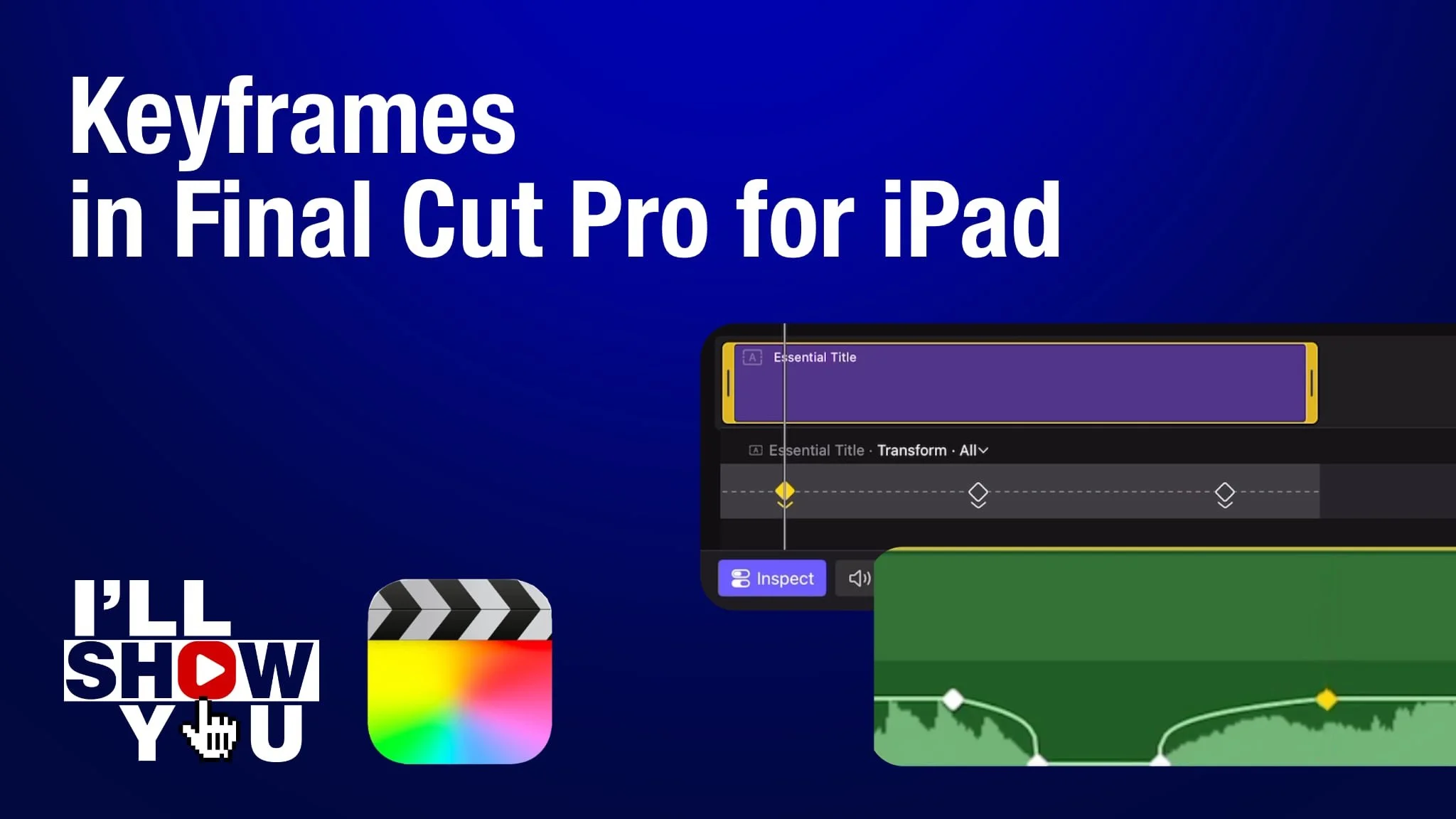
Take full control of your edits with this Final Cut Pro for iPad Keyframes Playlist — your guide to mastering animation and motion on iPad. Learn how to add, adjust, and manage keyframes for both video and audio clips to create professional, dynamic edits.

These tutorials cover everything from the basics of setting keyframes to advanced techniques like retiming animations and syncing audio adjustments. Perfect for mobile filmmakers, content creators, and video editors who want to edit faster and smarter on iPad.

Whether you’re adjusting motion, fine-tuning audio, or creating smooth text animations, this playlist will help you unlock the full power of keyframes in Final Cut Pro for iPad.

Learn how to animate text using keyframes in Final Cut Pro for iPad in this step-by-step tutorial. You’ll see how to add, delete, navigate, and re-time keyframes using the built-in keyframe editor to create smooth and professional text motion. Perfect for mobile video makers, filmmakers, and editors using iPad, this tutorial will help you bring your titles and graphics to life with dynamic animation. Whether you’re creating social videos, YouTube intros, or cinematic titles, mastering keyframes in Final Cut Pro for iPad is a must for any editor.

Discover how Apple’s powerful video editing tools make it easy to create motion graphics right from your iPad — no desktop required!

Software Versions:

Final Cut Pro for iPad 2.3

iPadOS 26.0.1

Learn how to quickly color correct and color grade video clips in Final Cut Pro for iPad using Apple’s built-in “Enhance Light and Color” feature. This tool uses artificial intelligence (AI) to automatically adjust exposure, contrast, brightness, saturation, and overall color balance—helping you achieve professional-looking results in seconds. Perfect for mobile video making, mobile filmmaking, and iPad video editing, this beginner-friendly tutorial shows how to enhance your footage with just one tap. If you’re creating content on your iPad, this workflow will save time while boosting your video quality.

Learn how to create Picture-in-Picture (PiP) effects in Final Cut Pro for iPad with this quick and easy tutorial. Perfect for beginners, this video walks you through how to overlay one video on another, resize and position your clips, and customize your Picture-in-Picture effect to elevate your mobile video editing. Whether you’re making tutorials, reaction videos, or creative projects, this workflow will help you create professional-looking videos right on your iPad. Ideal for mobile video making, mobile filmmaking, and video editing on iPads.

Software Versions: Final Cut Pro for iPad 2.3, iPadOS 26.0

Learn how to quickly adjust audio levels for multiple clips in Final Cut Pro for iPad with this beginner-friendly tutorial. Whether you’re making YouTube videos, editing mobile films, or working on social media content, this tip will save you time and make your workflow more efficient. I’ll show you step-by-step through selecting multiple clips and applying consistent audio adjustments—perfect for improving sound quality across your entire project.

If you’re into mobile video making, mobile filmmaking, or just starting with Apple’s video editing software, this quick tip will help you edit faster and smarter.

Learn how to add and customize text in Final Cut Pro for iPad with this quick and easy tutorial for beginners! Whether you’re making vertical videos, social content, or full mobile films, this guide will show you how to insert and style a basic title to match your video’s aesthetic.

In this tutorial, you’ll discover how to:

📝 Add a basic text title to your timeline

🖋️ Edit the text content, font, and size

🎨 Change color, alignment, drop shadow, and position

This video is perfect for mobile filmmakers, iPad editors, and anyone using Final Cut Pro for iPad to create content on the go. Boost your storytelling with clean, readable titles in just a few taps!

Learn how to record a voiceover directly in Final Cut Pro for iPad using the built-in voiceover recording feature. This beginner-friendly tutorial walks you through the fastest way to capture and insert narration or commentary right into your timeline — all from your iPad.

Whether you’re creating vlogs, tutorials, reels, or documentaries, this is a must-know technique for mobile filmmakers, content creators, and iPad video editors. Perfect for Final Cut Pro for iPad users who want to enhance their video projects with professional-sounding narration — no extra gear required!

Note: After the recording is complete, a clip of the recording is also placed in the browser.

Learn how to draw on your video using Apple Pencil in Final Cut Pro for iPad! This tutorial, about the Live Drawing feature, is perfect for beginners and intermediate users looking to add custom hand-drawn annotations, illustrations, or highlights directly onto their footage.

Whether you’re creating content for YouTube, Instagram, TikTok, or professional projects on the go, this technique is a powerful way to enhance your video storytelling — all on your iPad. Maximize the potential of Final Cut Pro for iPad, Apple Pencil, and your creativity.

Learn how to rename your clips in Final Cut Pro for iPad with this step-by-step tutorial designed for beginners and intermediate users. Whether you’re organizing footage in the browser or keeping your timeline clean and easy to navigate, knowing how to rename clips properly is essential for a smooth mobile editing workflow.

If you’re using an iPad for video editing, mobile filmmaking, or content creation, this tip will help you stay organized and efficient in Final Cut Pro for iPad. Perfect for creators editing YouTube videos, vertical content for TikTok or Instagram, or professional mobile projects using Apple’s iPad-based editing tools.

Want to make your vertical videos look polished in a horizontal (landscape) timeline? In this Final Cut Pro for iPad tutorial, I'll show you how to create a blurry background behind a vertical video to make it look great on widescreen formats like YouTube or TV.

This beginner- and intermediate-friendly video shows you how to easily duplicate your vertical clip, apply a blur effect, and create a landscape-friendly version of your mobile footage—all directly on your iPad using Final Cut Pro.

Perfect for mobile filmmakers, social media content creators, and anyone editing TikTok, Instagram Reels, or iPhone footage for horizontal screens. Upgrade your mobile editing workflow with this powerful layout technique!

In this beginner-friendly tutorial, learn how to open an iMovie for iOS project in Final Cut Pro for iPad using two simple methods. Whether you’re starting a project on your iPhone or iPad in iMovie, this video shows you how to seamlessly continue editing in Final Cut Pro for iPad with enhanced tools and precision.

Method 1: Use the “Send to Final Cut Pro” feature directly from iMovie

Method 2: Manually import an iMovie project file into Final Cut Pro for iPad

This is perfect for mobile video creators, iOS filmmakers, and anyone looking to take their mobile editing workflow to the next level using Apple’s pro-level video editor on iPad.

✅ Designed for iPad users moving from iMovie to Final Cut Pro

✅ Compatible with iMovie projects made on iPhone or iPad

✅ Smooth workflow for mobile video editing and content creation

In this quick Final Cut Pro for iPad tutorial, learn how to turn off audio while scrubbing through your timeline. If you’re tired of hearing choppy or distracting sound while moving the playhead, this video shows you the simple steps to disable audio scrubbing — making your editing process smoother and quieter.

Perfect for mobile video editors, mobile filmmakers, and creators working on iPads, this tip helps streamline your workflow in Final Cut Pro for iPad. Whether you’re editing a YouTube vlog, a short film, or social media content, silencing scrubbing audio is a useful setting to know.

Want to edit vertical videos for TikTok, Instagram Reels, or YouTube Shorts using Final Cut Pro for iPad? In this step-by-step tutorial, you'll learn how to manually create a vertical video timeline by adjusting the custom project settings and setting the orientation to Portrait.

Whether you're a mobile content creator, filmmaker, or social media editor, this method helps you start with the correct aspect ratio from the beginning—saving you time and ensuring your content fits the platform perfectly.

This is a must-know technique for anyone editing vertical videos using Final Cut Pro on iPad.